Teams
Your team is the group of specialists you work with: who they are, what each one owns, how they work together. You put it together once. Then it is there every time you come back, and grows with the project.
A team can belong to a project, shared with everyone who works on it, or to you, ready for any folder. Either way, it is a short file you can read and edit.
Local teams
Section titled “Local teams”A local team belongs to a project. It lives in .recruit/settings.toml, at the root of the project, and is meant to be committed: everyone who clones the project gets the same team.
recruitfinds it from any subdirectory of the project.- The members work at the project’s root, wherever you launch it from.
- A file can hold several teams. A bare
recruitlaunches the only one, or the one named bydefaultat the top of the file; otherwise it asks which.
Personal settings
Section titled “Personal settings”.recruit/settings.local.toml, next to it, holds your own settings for the project. When recruit saves a team in the project, it writes a .recruit/.gitignore that keeps this file out of git; if you wrote the team by hand, add settings.local.toml to .recruit/.gitignore yourself.
It is merged over settings.toml key by key, and takes precedence: a table merges with the table of the same name, any other value (a string, a number, a list) replaces the one in settings.toml. A setting written there changes the team for you alone:
[claude]config_dir = "~/.claude-work"     # your Claude Code profile
[teams.web.members.backend]model = "sonnet"                  # this member, on your machine only
recruit edit --local opens it, and creates it when needed.
Global teams
Section titled “Global teams”A global team belongs to you rather than to a project. It lives in ~/.config/recruit/<team>.toml (in $XDG_CONFIG_HOME/recruit/ when that variable is set), and can be launched from anywhere:
cd ~/some/projectrecruit my-teamA global team has no folder of its own: it works in the directory where you launch it. Local and global teams differ only by where you can launch them from.
Which team recruit launches
Section titled “Which team recruit launches”| You type | recruit… |
|---|---|
recruit in a project with a team |
launches it (the default one, or asks when the project has several) |
recruit elsewhere, with global teams |
offers them, and never launches one without asking; it can also create a new team |
recruit with no team at all |
creates one interactively |
recruit <team> |
launches that team: the local one when both a local and a global team have that name, otherwise the global one |
recruit <team>, unknown |
creates it interactively, with that name |
A team runs in one place at a time: launching it again from the same folder joins it, and from another folder is refused.
Composing a team
Section titled “Composing a team”recruit new, or a bare recruit with no team, asks how to build it:
- Guided: you pick a project type and a size, and get a built-in team: 3, 5 or 8 members with their roles and instructions.
- Claude composes the team: in the guided mode, pick “Other: I describe my project, Claude builds the team”, then a size or “Let Claude decide”, and describe your project in a few sentences. Claude reads the project and composes a team by trade: a built-in role when one fits, otherwise a trade and a specialty, such as
dev-rust, and never two members on the same area. - Manual: you give each member’s name, role and, optionally, its instructions. recruit then offers to add its shared rules (point of contact, areas, shared git repository…).
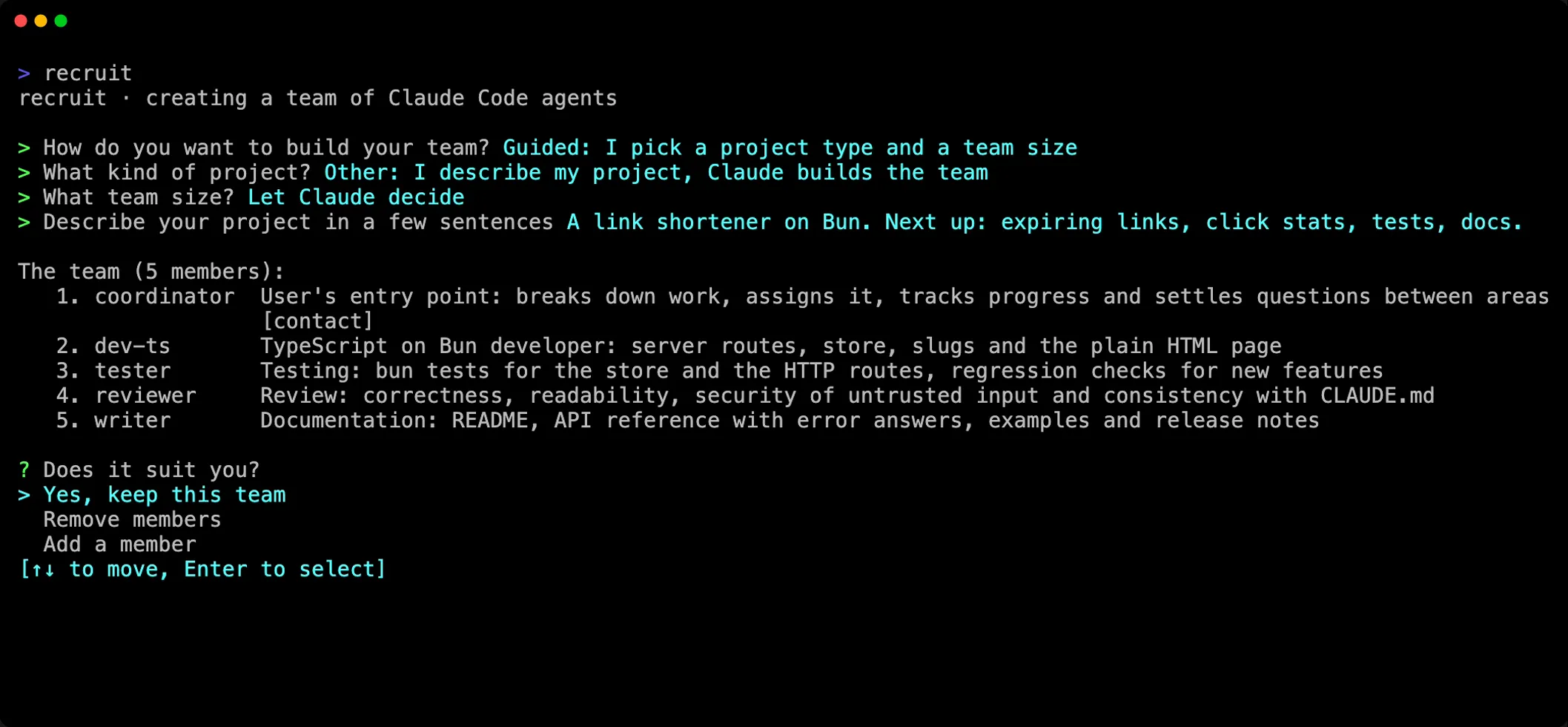
Then, whatever the way:
- The team: keep it, remove members, or add one.
- Your contacts: the members you talk to, two at most; the others are working agents. With none ticked, the first member is the contact. See Contacts and working agents.
- The agents’ permissions: Claude Code’s usual setting,
acceptEdits(file edits accepted),auto(Claude Code approves safe actions on its own) orbypassPermissions(never asks). - The name of the team.
- Where to save it: in the project (
.recruit/settings.toml, to commit) or in your profile (~/.config/recruit/<team>.toml). - Launch it now, or later.
Without a question
Section titled “Without a question”The same, from a script or a single line:
recruit new web --template web --size medium # a built-in teamrecruit new web --describe "Shop in Next.js with a Go API" # composed by Clauderecruit new web -m "lead:Coordinates" -m "dev:Writes the code" # member by member-m also works with --template, to add a member to the built-in team or give one of its members another role. --contact, --model, --permission-mode, --global and --launch complete them: see recruit new.
Team and member names follow the same rules, whether recruit asks for them or you write them in the file:
- A team’s name becomes a file name: letters (accents included) and digits,
-and_, 40 characters at most, not starting with-. It cannot be one of recruit’s commands:new,list,attach,stop,edit,templates,help, or the internal ones that start with_. - A member’s name is the address its teammates write to: letters and digits,
-,_and., no spaces, 40 characters at most, not starting with-or.. Two members of a team cannot have names that differ only by case.
A name written by hand that breaks these rules stops the team from launching: recruit names the file, the name and the reason (see the FAQ). The team’s menu also refuses a name that a Claude session open in the team’s folder already has.
Changing a team
Section titled “Changing a team”- While it runs: the team’s menu (
Alt+r) changes a member’s model, effort, role, instructions, tab or permission mode, adds and removes members, and writes the change into the right file. Most changes reach the running team at once. - By hand:
recruit editopens the project’ssettings.tomlin your editor ($VISUAL, else$EDITOR, elsevi),recruit edit <team>a given team’s file,recruit edit --localyour personal file. recruit checks that the file still reads when you close it.
What a running team does with changes made by hand:
| Change | Applies |
|---|---|
| Roles, instructions, the team’s members as the prompts describe them | with each member’s next message, with recruit’s mod |
| A member’s model, effort, permission mode, arguments | when that member next starts |
| A member added or removed | at the next launch, or as soon as you change anything in the team’s menu |
| Layout, tabs, grid, dashboard, language | at the next launch |
recruit --restart --resume applies everything at once, each member resuming its conversation.
Every key is described in the configuration reference.