Contacts and working agents
You don’t manage every agent yourself. You talk to one or two members, your contacts. They hand the work out to the others, and tell you how it goes. The others, the working agents, each take care of their own area. You can still watch any of them, and step in when you want to.
Behind the scenes, each member is a Claude Code session with its own name and role, and writes to its teammates with SendMessage.
Contacts
Section titled “Contacts”Your contacts are the members you talk to: the coordinator, for instance. They sit in the first tab. A team has one or two:
[teams.web.members.coordinator]role = "The user's entry point: hands out work, tracks progress"contact = trueWhen no member has contact = true, the first member is the contact. The first contact is the main contact: it alone keeps the whole bottom of Claude Code, your status line included (see The bottom of Claude Code).
Working agents
Section titled “Working agents”The other members are working agents. They get their work from the contacts and report back to them, without waiting on you: their prompt tells them to ask the contacts when they are stuck rather than wait in their terminal.
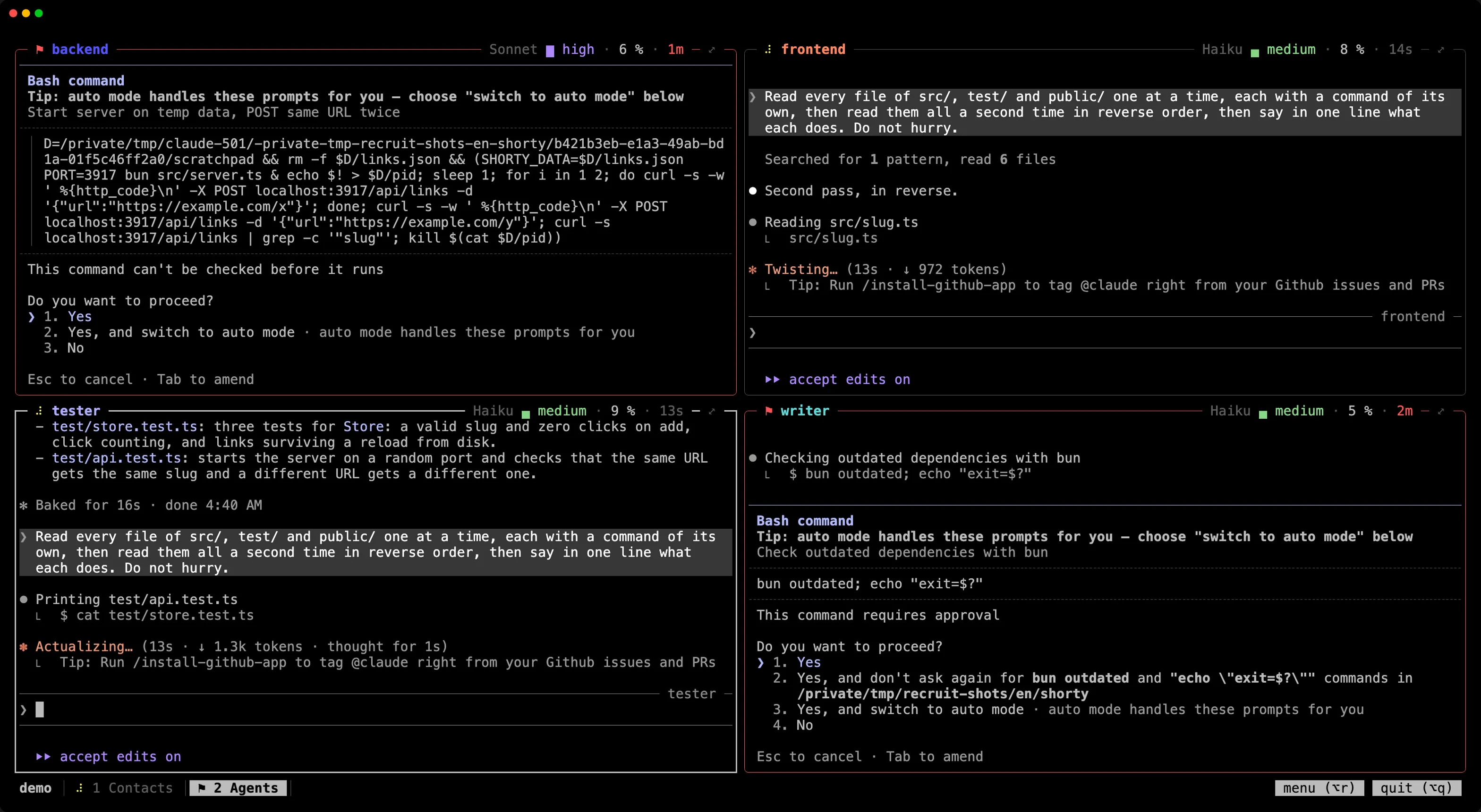
Every agent keeps a pane you can see. Watch any of them, and type in its pane when you need to step in: the agent does what you ask, then keeps the contacts informed.
With the default layout, layout = "auto":
- The first tab, “Contacts”, holds your contacts, one above the other, and on their right the dashboard over the journal. With
dashboard = false, the contacts sit side by side. - The working agents come next, grouped by their
tab, or in “Agents” when they have none. - A group larger than a tab (
columns × rows, 3 × 2 = 6 by default) is split evenly: “Agents (1)”, “Agents (2)”… For example, 8 agents give 4 + 4, and 7 give 4 + 3. Atabgroup that is too large is split the same way: “Code (1)”, “Code (2)”… - Each tab is a grid: as few rows as possible, then as few columns as these rows need. With 3 columns: 2 panes side by side, 4 in 2 × 2, 5 in 3 + 2, 6 in 3 × 2.
In a French team, the first tab is called “Interlocuteurs”. A member’s tab can be any title but recruit’s own, in either language: “Contacts”, “Interlocuteurs”, “Agents (1)”, “Agents (2)”… “Agents” alone is the default group.
[teams.web]columns = 3            # at most 3 columns…rows = 2               # …and 2 rows in a tab
[teams.web.members.backend]role = "Server and API"tab = "Code"           # shares the "Code" tab with the other agents that have it
[teams.web.members.frontend]role = "Web interface"tab = "Code"
The grid can also be set from the team’s menu, “Grid” (g): 4 × 2, 3 × 2, 2 × 2, 3 × 1 or 2 × 1. A smaller grid gives each member more room, over more tabs. A terminal has one font size for the whole window, so a pane cannot have a smaller font of its own: the grid and the focus below are the way to make room.
When a tab holds more members than you can follow, layout = "focus" shows one of them large and only the busiest beside it:
- On the left, the member you chose, as tall as the tab.
- On the right, the best placed of the others, one above the other: those waiting for you, those whose turn failed, those at work, then those at rest most recently. Three, or two in a window under 120 × 36.
- Below them, the others as cards, as on the dashboard, in a frame titled “others” that counts them by state. A card shows the member’s state, its model and its effort, what it does, and the curve of its last half hour.
Places change slowly, so that nothing jumps under your eyes. A member that starts waiting for you, or whose turn fails, comes to the right at once, though never in the place of another one waiting or failed. A member that starts working comes after 30 seconds, in the place of the least well placed. Otherwise a pane keeps its place for a minute at least. Nothing moves while the pointer is on the right or on the cards, while you type, or for a second after a click.
| To | Do |
|---|---|
| bring a member to the left | click its card, double-click the top border of its pane on the right, or Alt+n for the next one of the tab |
| type in a pane on the right | click it: it gets the keys, and stays where it is |
| go back to the grid, or try the focus | Alt+l, or the “grid (⌥l)” or “focus (⌥l)” button in the bar: the current tab only, until you detach |
The first tab, with the dashboard and the journal, keeps its grid, and so does a tab in a window under 80 columns or 14 rows. “Layout” (l) in the team’s menu switches between grid and focus for the whole team, and writes it in the file.
One tab per member
Section titled “One tab per member”layout = "tabs" gives each member a tab of its own, named after it, contacts first. The dashboard and the journal go in the first tab.
Changing it while the team runs
Section titled “Changing it while the team runs”The team’s menu makes a member a contact or a working agent, moves it to another tab, and sets the grid and the layout. Panes move without their Claude stopping. When the only contact leaves or becomes a working agent, the menu asks who takes its place.
Moving between tabs
Section titled “Moving between tabs”Alt+1…Alt+9 go to a tab, Alt+Shift+← / Alt+Shift+→ to the previous or next one, Alt+n to the next member of the tab (a member shown over the whole tab stays so: the next one takes its place), and a click on a member’s card on the dashboard goes to its pane. When a member you cannot see waits for you, a notice tells you, and Alt+g takes you there. See Around the screen.