Dashboard and journal
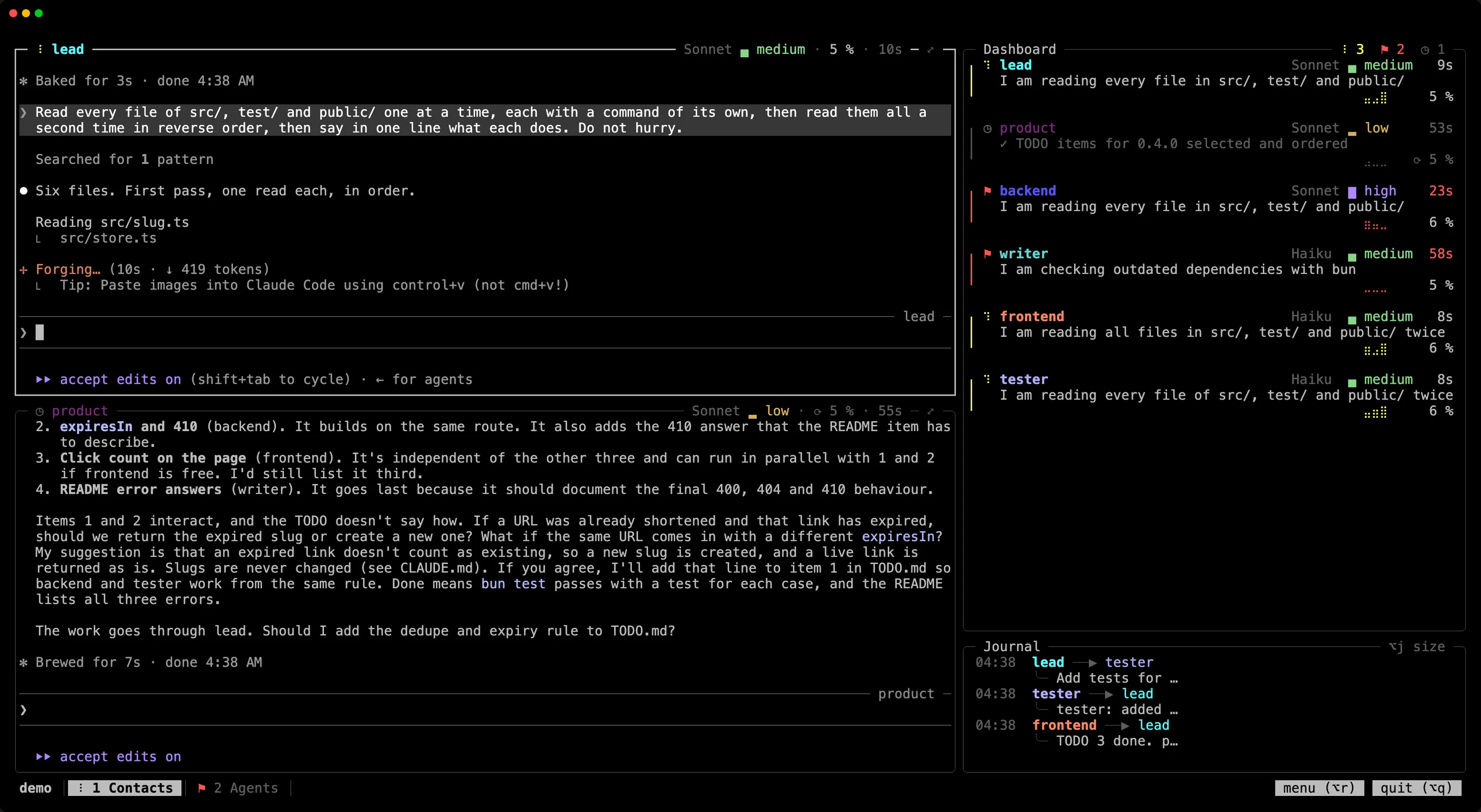
The dashboard tells you at a glance who is working, on what, and who is waiting for you. The journal shows what the members tell each other. You know where things stand without asking anyone.
Both sit on the right of your contacts, in the first tab: the dashboard on top, the journal below. They read what Claude Code already records, its list of sessions (claude agents --json) and the conversation files.
The dashboard
Section titled “The dashboard”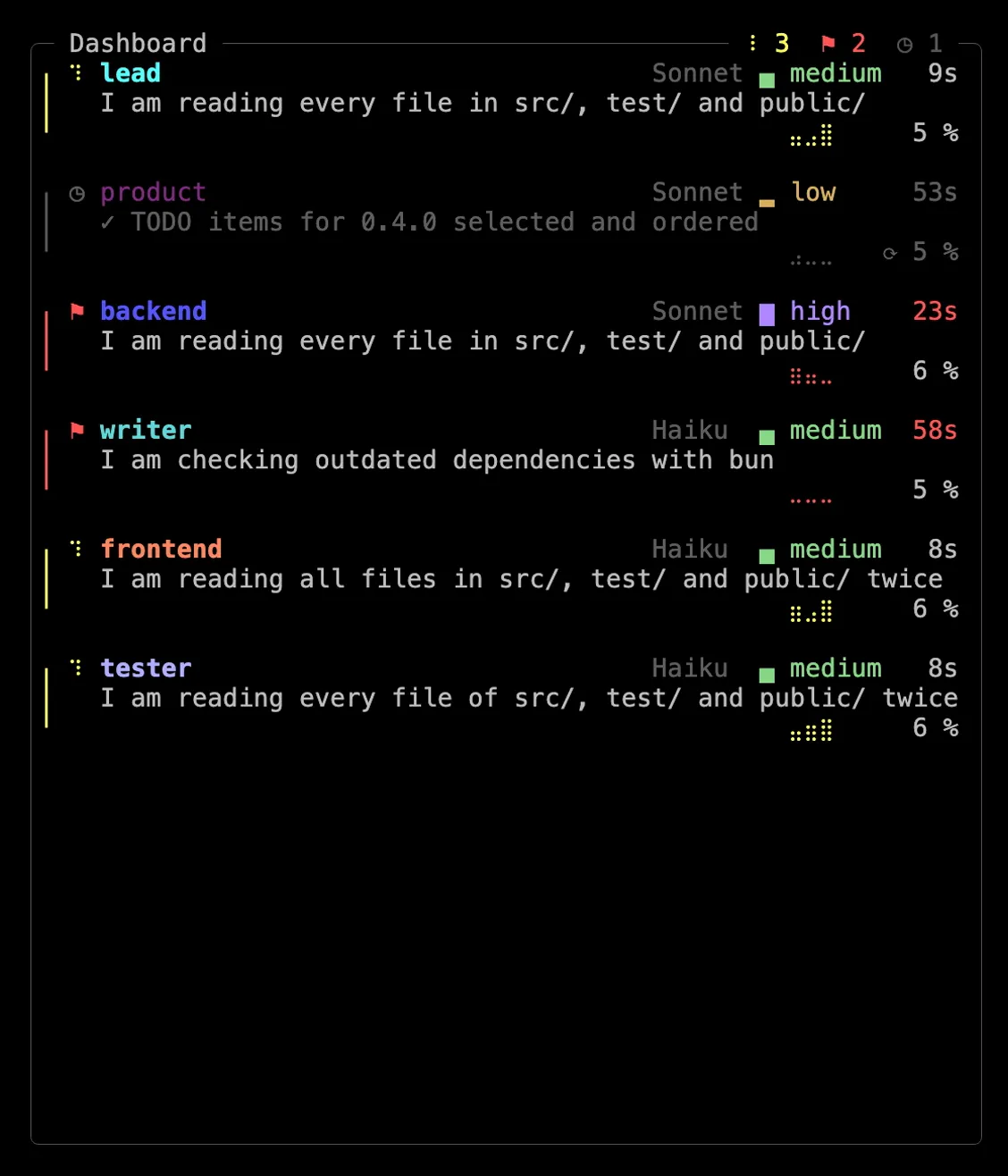
The top border of its frame counts the members in each state; the shortcuts are in the bar at the bottom of the screen. Below, a card per member.
Typing in the dashboard or the journal does nothing. The dashboard redraws itself whole every 30 seconds and when the computer wakes up; Ctrl-L, in its pane, redraws it at once.
A card
Section titled “A card”A line on the card’s left takes the color of the member’s state, and the name says it too:
| State | Line | Name |
|---|---|---|
| At work | bright yellow | bold, with a spinner on its left |
| Waiting for you in its terminal (a permission, a question) | bright red | bold, with the state’s icon on its left, and the time in red |
| At rest | grey | dimmed, with the state’s icon on its left |
| At rest, while a command it started still runs (a server, a watcher) | grey | dimmed, with a terminal sign on its left (❯, or a console icon where the terminal has Nerd Font symbols) |
Claude Code counts a member whose command still runs past its turn as busy. Its turn is over, though, so the dashboard shows it at rest, under that sign; back at work, it shows at work again.
The card also shows for how long the member has been in that state (12s, 22m, 1h05), a curve of its activity over the last half hour, and, in its title, its model and its effort, as far as the room allows: “Opus ◉ extra”, else “Opus ◉”, else “O ◉”, the model’s initial. The model is always dimmed. The effort is always bright, with the signs and the colors Claude Code shows under its prompt: ○ low in yellow, ◐ medium in green, ● high and ◉ extra (the files’ xhigh) in purple, ◈ max in a rainbow. Without the mod, these are the ones the team’s file sets, when it sets them.
With recruit’s mod, loaded with Claude Code 2.1.287 or newer, the cards show more:
- The model and the effort the member’s session actually uses.
- The context, which turns orange at 80% of the point where Claude Code compacts the member’s conversation on its own, and red at its warning, 20,000 tokens before that point.
- What it does: a line that sums up the member’s current request, the one you typed to it or a teammate’s message. Too long, it goes over two lines when there is room, and is cut otherwise. At rest, the line shows the last task, in its finished form (“✓ Version 2.4.1 released”). A message that asks for nothing (thanks, an agreement) keeps the line from before.
- The usage of your account at the bottom: 5 hours and 7 days, with the time left before each resets.
A member whose turn failed on an API error shows it on its card, in orange: “Turn failed: API overloaded (529)”, then the task it stopped in. See When a turn fails.
Subagents and teammates
Section titled “Subagents and teammates”When members hand part of their work to agents of their own, these get cards too, with recruit’s mod, at the bottom, after every member, each kind in a section under a titled rule: “♙ teammates · 3”, then “⧗ subagents · 2” at the very bottom.
- A teammate, an agent of a Claude Code team that a member started: its name, and on the right the member that started it, dimmed in its color (“♙ dev-interface”). Yellow at work, dimmed while it waits for a message. The card stays as long as the member’s session lists the teammate. A teammate whose state has not changed for half an hour shows
?: its pane may have died. After two hours, it goes. - A subagent, one a member started for a task: its type, what it was asked, for how long it has been working, and the member that started it (“⧗ dev-interface”). Once done, it turns to a dimmed ✓ for about ten seconds, then goes. A subagent started by a subagent gets its own card too.
One that failed shows in orange. A click on a card goes to the pane of the member that started it.
They only get the room left once every member has its card: they never shorten a member’s. Short of room, a section becomes a list of names, then a count (“♙ 3 teammates”), the subagents giving way before the teammates. The team’s menu does not show them: there is nothing to set on them.
Compacting a conversation
Section titled “Compacting a conversation”A click on the context of a member at rest, marked ⟳, offers to compact its conversation, once you confirm. The same ⟳ shows in the top border of the member’s own frame. It is what Claude Code would do on its own at the threshold, and costs as much: the member’s model rereads its whole context to sum it up. A member that went back to work meanwhile refuses. Until the member’s next answer, the card then shows the context as Claude Code counts it, like /context.
Automatic compaction
Section titled “Automatic compaction”A member that stays at rest for 15 minutes with a large context is compacted on its own, so that it comes back to work with room, and without waiting for Claude Code to compact it in the middle of a task. By default, from 70% of its window, the figure its frame and its card show. The summary keeps in detail the last stretch of work: the files touched and why, the choices made, what is left open, who asked for what and what was promised.
It is never done to a member on your screen, nor to one that waits for you, whose turn failed, whose command still runs, or whose subagents or teammates are at work (asked again five minutes later). At most once per stretch of rest. Contacts are compacted too, when they are out of sight. During the compaction, the member stays at rest on the dashboard.
Each compaction leaves a trace: a ⟳ in the member’s curve, at the time it was made, and a line in the journal, “⟳ dev-interface auto-compacted · 74 → 9 %”, the context before and after. A compaction you ask for, from a click or by typing /compact, leaves the same line, without “auto”. An automatic one that fails leaves a line in orange, with the reason.
auto_compact = 80 in the team’s settings sets another share, auto_compact = false turns it off; so does “Auto-compaction” in the team’s menu. Each compaction costs as much as one asked by hand.
Order and room
Section titled “Order and room”The cards come in this order: the contacts, the agents waiting for you, those at work, then those at rest, the most recent first. In that order, each card takes the richest form the room leaves it, once the cards after it have their plainest one:
- across the whole pane, with what it does on two lines, or on one;
- side by side with another card, with one line or none;
- for a working agent at rest, only its name, in a list below the cards.
The agents at work keep the whole width and their whole task as long as the others can make room: those at rest longest go into the list first, and the list comes down to one line (“… and 3 more”) before an agent at work loses any of its task. Subagents and teammates come last: they take only the room the cards and the names leave, listed, then counted, then left out. The layout changes only when the cards, their states or the pane change.
When sessions open elsewhere use members’ names, a dimmed line over the usage names them, if room is left.
The journal
Section titled “The journal”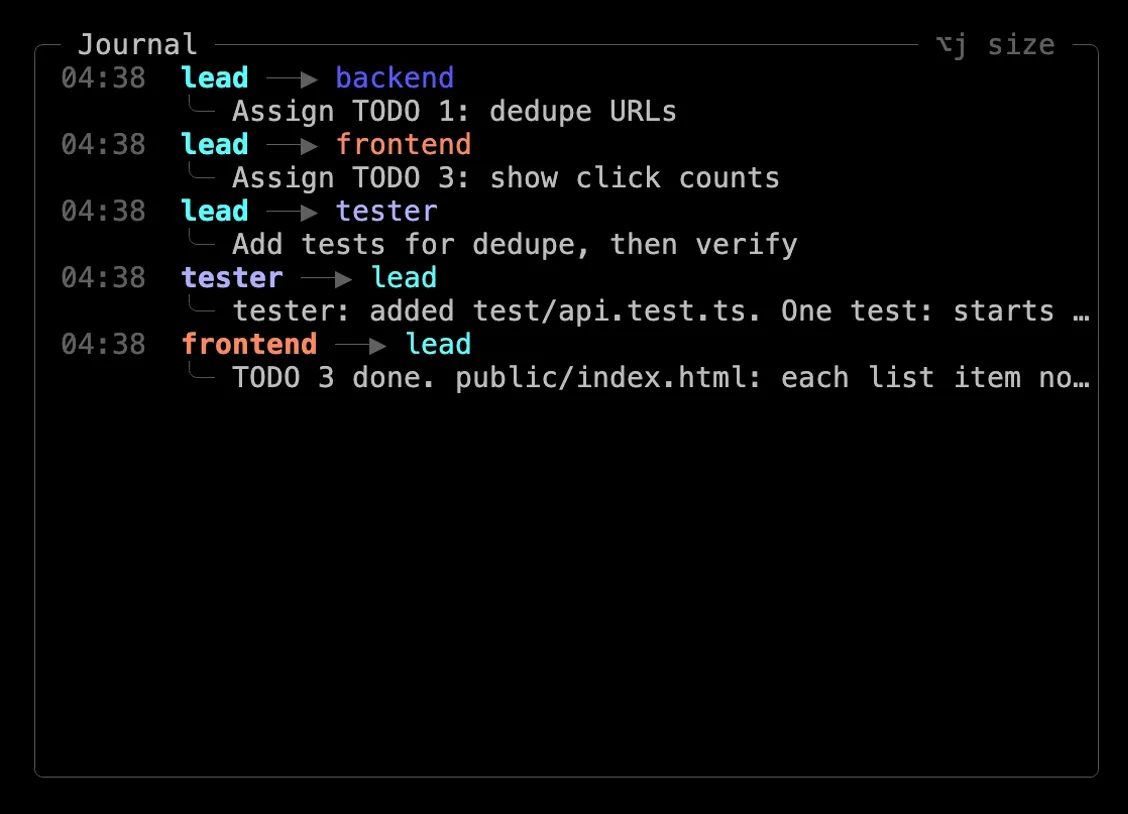
The journal lists the messages the members send each other, two lines each, and the members’ compactions, one line each.
It has three sizes: full (half of the column), reduced (its last three messages, the rest of the column to the dashboard) and hidden. It starts reduced. Alt+j (⌥j on macOS) takes it from full to reduced, then to hidden, then back to full. /team (/equipe in a French team), typed in a member’s prompt, does the same, even while Claude works.
Clicks
Section titled “Clicks”A click on a member’s card, on its name in the list, or on the sender or the recipient of a message in the journal, goes to that member’s pane, in its tab.
Without them
Section titled “Without them”dashboard = false in the team’s settings, or “Dashboard” in the team’s menu, leaves both out: the contacts then sit side by side in the first tab. With layout = "tabs", both go in the first tab.
A dashboard closed by mistake comes back when you run recruit again on the running team.